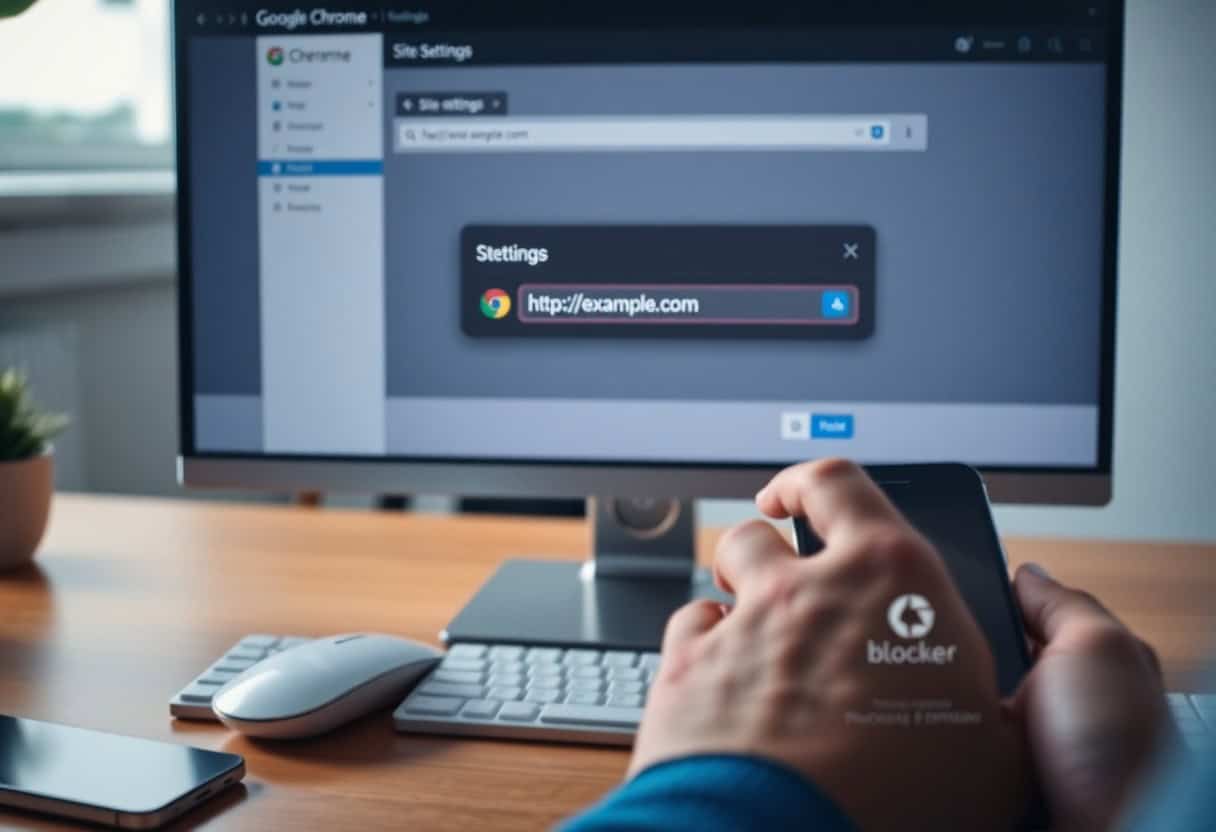
How To Block Porn Urls: this guide explains how to block porn urls in plain terms and gives you clear, practical steps you can act on today. Understanding how to block porn urls is the first move toward lasting change.
Table of Contents
Start with our signs of porn addiction guide for background.
To block a specific URL in Chrome, you can use extensions, parental controls, or built-in site settings. This guide shows you how to block a specific URL quickly, whether you want to restrict one site or manage access across your whole device.
Porn Addiction: Primary Factors Driving the Need to Block URLs
- Reduce distractions to keep focus during concentrated work or study sessions and prevent time lost to nonvital sites.
- Protect devices and corporate networks by restricting access to domains known for hosting malware, phishing pages, or drive‑by downloads.
- Enforce family‑friendly browsing by blocking sites that expose minors to inappropriate content or excessive screen time.
- Meet policy and compliance requirements by limiting access to bandwidth‑heavy or noncompliant services during business hours.
- Knowing how and where to apply URL blocks lets you target specific problems without overrestricting legitimate resources.
Enhancing workplace and personal productivity
You can eliminate habitual interruptions by blocking specific URLs that trigger frequent context switches, which helps you sustain longer periods of deep work and finish tasks more predictably.
Blocking distracting domains during set hours gives you the control to align browsing with priorities, and you can tailor rules per device or profile to match your workflow.
Teams notice reduced meeting delays and fewer off‑task chats when members apply URL restrictions, so you preserve collective focus and reduce cumulative lost time.
Mitigating security risks and malicious content
Malware often arrives through compromised URLs that exploit browser vulnerabilities, so you reduce infection vectors by preventing access to known malicious addresses you track.
Phishing schemes mimic trusted sites via deceptive links, and you lower the chance of credential theft by blocking suspicious domains and educating yourself about common indicators.
Unwanted redirects and injected scripts from certain addresses can exfiltrate data or install trackers, which makes targeted URL blocking a practical layer in your security posture.
Regularly review threat feeds and integrate URL blocking with browser hardening and endpoint protections so you maintain an adaptive defense that reflects emerging threats.
Implementing parental controls for safer browsing
Parents can restrict access to specific URLs that host adult content or addictive games, which helps you enforce limits while preserving access to educational resources.
Setting age‑appropriate whitelists and schedules lets you balance supervision with autonomy, and you can apply different rules for separate user profiles to suit development stages.
Controls that target exact URLs avoid blocking entire domains with useful subpages, allowing you to fine‑tune restrictions as children’s habits and needs evolve.
Monitor activity logs and pair URL blocks with conversations about online safety so you keep rules transparent and teach children how to make better browsing choices.
How-to Guide: Utilizing Chrome Extensions for Site Blocking
Identifying and installing reputable blocking tools
Start by scanning the Chrome Web Store for extensions with high ratings and substantial user counts so you can gauge real-world reliability and maintenance frequency before installing anything.
Choose extensions that display recent updates and clear changelogs, since active development reduces the chance of compatibility or security issues while you use them.
Verify requested permissions and read privacy policies; you should prefer tools that limit access to only the data needed, offer source transparency, and allow testing in an isolated browser profile or incognito mode.
Configuring custom block lists and redirect settings
Open the extension’s options and locate the custom block list area so you can add exact URLs, domains, or wildcard patterns to control access at the level you need.
Add exceptions and subdomain rules where appropriate, and use regex support if available to target specific paths or query parameters without overblocking legitimate content.
Set redirect targets for blocked requests to about:blank, a local HTML page, or a custom message so you control the user experience when a site is blocked.
Test redirects after saving changes to catch loops or unintended matches, and export your lists if the extension supports backups to keep settings consistent across reinstalls.
Establishing time-based access schedules
Schedule access windows inside the extension to restrict sites during work hours or study periods, applying rules per site so you can tailor enforcement to different content types.
Define weekly patterns and one-off rules for holidays or deadlines, combining daily limits and enforced breaks to prevent short-term overrides from undermining longer goals.
Block sites automatically after exceeding allotted time and require a password or sync with your account to prevent casual disabling of the restriction.
Monitor usage logs or reports the extension provides so you can adjust schedules based on actual behavior and tighten or relax controls as needed.
How-to Implement System-Level URL Restrictions
Modifying the Windows hosts file for global blocking
On Windows you must edit the hosts file with elevated permissions to block a site system-wide; run Notepad or another plain text editor as administrator, then open C:\Windows\System32\drivers\etc\hosts. You will add lines that map the target domain to 127.0.0.1 or 0.0.0.0, and include both the bare domain and the www subdomain to cover common requests.
After saving, clear the DNS cache with ipconfig /flushdns and test in Chrome using an incognito window to confirm the entries prevent access.
Open the hosts file carefully and make a backup before you change anything so you can restore original settings if needed. You should avoid extra formatting or file extensions that can prevent the file from being read; save it plainly with no .txt suffix.
You can repeat the same pattern for multiple domains, one per line, and comment out entries with a leading # if you want to disable them temporarily without deleting.
Edit system permissions only when necessary and be aware some security software or corporate policies will override local host mappings. If you find entries ignored, check for DNS-over-HTTPS in Chrome or system-wide DNS services that bypass the hosts file; disabling those features or adjusting their settings will restore the effectiveness of your changes.
Testing from different user accounts or after a reboot helps confirm the block applies globally on the machine.
Utilizing macOS Terminal for site filtering
Start by opening Terminal and using sudo to edit /etc/hosts with a text editor like nano or vim so you have the required permissions to save changes. You will append lines mapping the domain to 127.0.0.1 and include variations such as www and other subdomains; save and exit the editor when finished.
Run sudo killall -HUP mDNSResponder or the appropriate flush command for your macOS version to clear DNS caches, then verify the block in Chrome.
Run commands carefully and keep a copy of the original hosts file so you can revert if a legitimate service is affected. If you use a managed device or employ third-party networking tools, those can override hosts entries and require you to adjust their settings instead.
Testing in a private browsing window and on other user profiles confirms whether the change is local to your account or system-wide.
Enter additional domain aliases or wildcard subdomains by listing each host separately; macOS does not support true wildcard entries in the hosts file so each variation requires its own line. You can script repeated entries if you need to block many domains, but ensure the script runs with sudo and includes validation to avoid corrupting the hosts file.
Periodically review the list to remove stale entries and keep performance predictable.
Protect your edits by setting the hosts file permissions back to restrictive values after saving and by using a reliable backup method such as a timestamped copy in a secure folder to track changes over time.
Configuring router-level blocks for all devices
Access your router’s admin interface through its local IP address and authenticate with an account that has administrative rights before making changes that affect the entire network. Find the section for URL filtering, parental controls, firewall rules, or DNS settings and add the target domain to the blacklist or policy that prevents resolution.
Apply changes and reboot the router if required, then test from multiple devices to ensure the block propagates to every client on the network.
Locate options to set DNS to a filtering service like OpenDNS FamilyShield or to add custom DNS entries that reject or redirect unwanted domains if your router lacks a native URL block list. You can also create firewall rules that drop outbound HTTP(S) requests to specific hostnames or IP ranges, but blocking by domain at the DNS level is usually simpler and more maintainable.
Keep a record of your changes in case you need to revert them or document policies for household members.
Set firmware-level controls such as those available in OpenWrt, DD-WRT, or Tomato if your stock firmware does not provide sufficient filtering; those firmwares offer more granular domain and category-based blocking. When you install third-party firmware, follow the vendor instructions precisely to avoid bricking the device and ensure you retain a rescue method to recover the original settings.
Regularly update router firmware to patch vulnerabilities that could undermine your network-wide restrictions.
Consider scheduling blocks or using profiles when multiple user groups share the network so you can apply stricter rules for guests or children while allowing full access for trusted devices, and document any DNS overrides to avoid confusion during troubleshooting.
Administrative Factors for Google Workspace Users
- Use the Admin console to set URL blacklists and whitelists
- Apply policies by organizational unit to target specific groups
- Verify policy propagation on managed Chrome profiles
Managing organizational URL access via Admin Console
You can block specific URLs from the Admin console by going to Devices → Chrome → Settings for users and browsers, adding entries to the URLBlocking setting, and testing on a dedicated account to confirm exact hostnames or pattern matches.
Admins organize your users into OUs so you apply tailored URL rules, schedule rollouts to reduce disruption, and monitor the Admin console status panel to catch delivery issues quickly.
Policies for exceptions and whitelists should be precise, so you include full domains or carefully chosen wildcards and log changes to track who modified URL settings and when.
Enforcing blocklists across managed Chrome profiles
Chrome policies propagate to managed profiles on a regular fetch interval, so you ensure devices check in and that Browser Cloud Management enrollment is active to keep blocklists consistent.
Devices on different platforms can behave differently, so you validate enforcement on Windows, macOS, and Android work profiles and compare extension enforcement against built-in URL blocking.
Profiles with local overrides or legacy extensions may bypass simple blocks, so you enforce managed configurations, restrict extension installation via policy, and use reporting to identify persistent exceptions.
This guidance helps you combine blocklists with reporting: enable URL reporting in the Admin console, export logs to confirm enforcement across OUs, and apply kiosk or guest session restrictions so users cannot install or enable bypassing extensions.
Essential Tips for Maintaining Restricted Access
- Enforce Chrome policies at the device or user level to prevent local overrides.
- Deploy DNS or firewall-level blocks as a secondary control layer.
- Use centralized management and logging to monitor compliance.
Preventing bypasses via Incognito mode settings
You can disable Incognito mode at the browser level using Chrome enterprise policies or Group Policy templates so users cannot open private windows to evade filters, and require sign-in to managed accounts to restrict profile creation on shared devices.
Blocking extensions must be allowed to run in Incognito if you depend on them to enforce URL restrictions; enable their Incognito access in policy and regularly test them on representative workstations to confirm coverage.
Set network-level protections such as DNS filtering and firewall rules to back up browser controls, and maintain monitoring and alerting to detect attempts to circumvent restrictions promptly.
Synchronizing blocked URLs across multiple workstations
Use Google Workspace, an MDM, or Group Policy to push a single blocked-URL list to all Chrome instances so you avoid inconsistent local configurations and ensure uniform enforcement.
Syncing extension settings and policy templates through a version-controlled repository helps you automate deployments and reduce human error; validate rollouts by sampling devices and reviewing policy reports.
Apply staged rollouts and schedule regular updates so new entries propagate safely, while centralized logging highlights devices that fall out of sync for rapid remediation.
Any device you add should inherit the blocked-URL policy when the user signs into the managed account; verify enrollment and force a policy refresh if updates lag.
Critical Success Factors for URL Management
- Clear whitelist and blacklist policies
- Regular auditing and change control
- Role-based exceptions and appeal processes
- Automation with human review and logging
Periodic auditing of blocked and allowed lists
You should set a consistent audit cadence that combines automated scans with manual reviews so you can spot false positives, stale entries, and policy drift; ensure each change is documented, linked to a ticket, and tagged with the reason for blocking or allowing a URL so audits are traceable and decisions are defensible.
Audits help you prioritize high-risk domains by traffic, complaint volume, or security alerts, and they should include cross-checks against threat intelligence feeds and analytics to catch newly malicious hosts that slipped past initial filters.
Schedule quarterly and ad-hoc reviews tied to incidents or policy updates, assign reviewers from operations and security, and keep a rollback plan for mistaken blocks to minimize business disruption.
Balancing security with user accessibility
Consider tiered policies that apply stricter blocking to sensitive groups while giving broader access to users who need it for their roles, and use contextual controls such as device type, location, and authentication strength to refine rules.
Provide a clear exception workflow that allows users to request temporary access with automated logging and manager approval, and make sure appeal outcomes are visible so you reduce repeated requests and improve policy accuracy.
Measure the impact of blocks by tracking access failures, support tickets, and workarounds, and correlate those metrics with incident reductions so you can adjust policy thresholds without degrading productivity.
The best balance comes from iterative testing: run pilot policies, collect user feedback, and tune rules so security goals and daily workflows align.
Conclusion
Presently you can block a specific URL in Chrome by using browser extensions, editing your hosts file, or deploying enterprise policies that enforce site restrictions. You control which method fits your technical comfort and scale, and you verify blocks immediately after applying them.
You will find extensions offer fine-grained rules and easy management, while hosts file edits block domains at the OS level without plugins. You can use Chrome’s family controls for simple cases or group policies for organization-wide enforcement.
You must maintain and audit your block list periodically and whitelist trusted sites when necessary. You can combine techniques for stronger, redundant protection and document the configuration so you or your team can reproduce it reliably.
Key Takeaways: How to Block a Specific URL
Knowing how to block a specific URL gives you precise control over your browsing environment. The most reliable way to block a specific URL on Chrome is through the BlockSite extension, which applies filters at the browser level.
System administrators who need to block a specific URL across multiple devices often prefer DNS-based solutions. Whether you need to block a specific URL for productivity or parental control, your chosen method should match your technical comfort level.
To block a specific URL permanently, choose a method that persists across browser sessions. Extensions that let you block a specific URL often include scheduling features so you can allow access at certain hours.
If your goal is to block a specific URL that serves malware or phishing content, your router’s settings provide network-wide protection that works even when extensions are disabled.
Parents who want to block a specific URL on a child’s device should consider solutions that survive software resets. Browser-level tools to block a specific URL are easy to bypass by switching browsers, which is why OS-level or router-level blocking provides stronger guarantees.
After you block a specific URL using any method, test it in a private window to confirm the block works.
Mobile users who want to block a specific URL on Android can use Chrome extensions directly. iOS users find it easier to block a specific URL through Screen Time’s Content Restrictions.
Documenting which method you used to block a specific URL helps you reproduce the configuration if you change devices.
Whichever route you choose, the aim is the same: block porn URLs before they ever load, on every browser and device you use.
The methods above all block porn URLs effectively, but pairing a browser filter with a network-level or accountability layer is what stops a single workaround reopening everything.
Understanding How To Block Porn Urls
Key Takeaways: How To Block Porn Urls
- Understand how to block porn urls clearly — knowing how it works removes shame and makes change possible.
- How To Block Porn Urls is manageable — with the right plan, real progress usually starts within weeks.
- Address the root, not just the urge — lasting recovery from how to block porn urls tackles the underlying triggers.
- Support speeds it up — accountability and honest conversations make how to block porn urls far easier to overcome.
- Small daily habits win — consistent action beats willpower alone when dealing with how to block porn urls.
Apply This to Your Recovery
Start with one step today, then build from there. These guides go deeper on how to block porn urls and the wider recovery path:
- Best Porn Blockers 2026: Apps, Extensions & Software Compared
- How to Block Websites on Your Phone (Step-by-Step Guide)
- What Is Porn Addiction? Complete 2026 Guide (Causes, Signs, Recovery)
For the clinical view of compulsive sexual behaviour, see Psychology Today’s overview of sex and pornography addiction.
FAQs: How To Block Porn Urls
Q: How can I block a specific URL in Google Chrome on a desktop computer?
A: Use a Chrome extension that blocks URLs (examples: BlockSite, SiteBlocker). Install the extension from the Chrome Web Store, open its options, add the full URL or pattern you want to block, and save. Grant the extension permission to run in Incognito if needed.
Alternative methods include editing the system hosts file to redirect a domain to 127.0.0.1 (Windows: edit C:\Windows\System32\drivers\etc\hosts as administrator; macOS/Linux: edit /etc/hosts), then flush DNS (Windows: ipconfig /flushdns; macOS: sudo dscacheutil -flushcache). Enterprise environments can use Chrome’s URLBlocklist policy to push block rules across users. Note that the hosts file blocks domains, not specific page paths.
Q: Can I block a single page or path (for example example.com/private-page) without blocking the whole domain?
A: Yes, but not with the hosts file. Use a URL-blocking extension that accepts full-URL entries or pattern matching, or apply a proxy/ firewall that supports URL path filtering.
Enterprise admins can add patterns to Chrome’s URLBlocklist such as *://example.com/private-page/* to target paths. Some ad-blockers or content blockers also accept custom filters for exact page blocking; follow the extension’s filter syntax when adding path-specific rules.
Q: How do I block a specific URL in Chrome on Android?
A: Chrome for Android does not support desktop extensions, so use one of these options: install a dedicated site-blocking app (for example BlockSite) and add the URL to its block list; set up Google Family Link on a supervised child account and restrict websites there; change router or DNS-level blocking (Pi-hole, NextDNS, AdGuard Home) so the device receives filtered responses; use a different browser on Android that supports URL-blocking add-ons.
Each method requires configuring the app, router, or DNS service with the specific URL or domain you want to block.
Q: How do I remove a block or restore access to a URL?
A: For extensions, open the extension’s settings, remove the URL or pattern, and save. For hosts-file changes, open the hosts file with elevated privileges, delete the redirect line for the domain, save, and flush DNS.
For router or Pi-hole rules, delete the entry in the router/DNS admin interface and reboot or reload the service. For enterprise-managed devices, request that the administrator remove the URL from the URLBlocklist policy and push the updated policy to users.
Q: What are the limitations and security considerations when blocking URLs in Chrome?
A: The hosts file only blocks by domain and requires administrator rights; it cannot target specific page paths. Users with local admin access or alternative DNS/VPN can bypass local blocks. Browser-based extensions can be disabled or uninstalled by users unless centrally managed.
HTTPS pages are still blocked by domain-based methods because DNS resolution fails, but path-level blocking needs extensions, proxies, or enterprise policies. Test changes carefully to avoid accidentally blocking needed subdomains or services, and keep backups of configuration files before editing them.
Related guides: Block Websites on Your Phone | Block Websites on Safari | Disable Pop-Up Blocker
Further reading: Google Chrome site settings guide | Chrome Web Store extensions
Understanding porn addiction is essential for recovery. Many people struggle with porn addiction silently, but recognizing the patterns of porn addiction is the first step toward change.
Understanding porn addiction is essential for recovery. Many people struggle with porn addiction silently, but recognizing the patterns of porn addiction is the first step toward change.
Understanding porn addiction is essential for recovery. Many people struggle with porn addiction silently, but recognizing the patterns of porn addiction is the first step toward change.
Understanding porn addiction is essential for recovery. Many people struggle with porn addiction silently, but recognizing the patterns of porn addiction is the first step toward change.
Understanding porn addiction is essential for recovery. Many people struggle with porn addiction silently, but recognizing the patterns of porn addiction is the first step toward change.
Understanding porn addiction is essential for recovery. Many people struggle with porn addiction silently, but recognizing the patterns of porn addiction is the first step toward change.
Understanding porn addiction is essential for recovery. Many people struggle with porn addiction silently, but recognizing the patterns of porn addiction is the first step toward change.
Understanding porn addiction is essential for recovery. Many people struggle with porn addiction silently, but recognizing the patterns of porn addiction is the first step toward change.
Understanding porn addiction is essential for recovery. Many people struggle with porn addiction silently, but recognizing the patterns of porn addiction is the first step toward change.
Understanding porn addiction is essential for recovery. Many people struggle with porn addiction silently, but recognizing the patterns of porn addiction is the first step toward change.
Understanding porn addiction is essential for recovery. Many people struggle with porn addiction silently, but recognizing the patterns of porn addiction is the first step toward change.
Understanding porn addiction is essential for recovery. Many people struggle with porn addiction silently, but recognizing the patterns of porn addiction is the first step toward change.
Understanding porn addiction is essential for recovery. Many people struggle with porn addiction silently, but recognizing the patterns of porn addiction is the first step toward change.
Understanding porn addiction is essential for recovery. Many people struggle with porn addiction silently, but recognizing the patterns of porn addiction is the first step toward change.
Compare the tools: see our full guide to the best porn blockers of 2026 — apps, extensions and software compared.