Start with our signs of porn addiction guide for background.
The most effective methods to block websites on Safari on iPhone or iPad use Screen Time settings, which let you set limits, add URLs to the blocked list, and enforce content restrictions.
Whether you need to block websites on Safari for parental controls or personal focus, this guide walks you through every option.
Porn Addiction: Understanding Screen Time Settings for Safari
You can control what Safari shows by using Screen Time, which centralizes content rules, passcode protection, and device-specific limits so browsing stays within your preferred boundaries without third-party apps.
Navigating to Content and Privacy Restrictions
Open the Settings app, scroll to Screen Time, and tap that entry to see device-wide limits and family controls that affect Safari and other apps.
Tap Content & Privacy Restrictions, then enable the main switch at the top to unlock the Content Restrictions menu where you set web controls and app limits for the device or child account.
After enabling restrictions, select Content Restrictions > Web Content to choose between unrestricted browsing, limiting adult content, or allowing only specific sites, and set a Screen Time passcode to prevent changes.
Enabling the Web Content Filtering Toggle
Locate Web Content inside Content Restrictions and use the available options to control Safari behavior, choosing between Allow All, Limit Adult Websites, or Allowed Websites Only based on how strict you want browsing to be.
Switch to Limit Adult Websites to let the system block many explicit sites automatically, then add individual URLs to Never Allow to ensure specific domains are always blocked in Safari.
Adjust to Allowed Websites Only when you want a curated list of approved sites; you can add, remove, or edit entries so Safari opens only the sites you explicitly permit while blocking everything else.
Once you add sites to Never Allow or Allowed Websites, those settings take effect immediately on that device, and requiring a Screen Time passcode prevents other users from undoing the web filters you configured.
How to Block Specific Websites Manually
Adding URLs to the Never Allow List
Open Settings and select Screen Time, then enable Content & Privacy Restrictions if it isn’t already active; after that choose Content Restrictions > Web Content and pick Limit Adult Websites to reveal the Never Allow section where you can add blocked addresses.
Tap Add Website under Never Allow and type the domain or full URL you want to block; you can enter example.com to block the entire site or include the full path if you only need a single page, and you’ll need your Screen Time passcode to make changes.
Enter each address carefully and include variations like with or without “www” when necessary, then test the entries in Safari; you can edit or remove entries by swiping left on any item in the list or by returning here to update the block.
Verifying Blocked Sites in the Safari Browser
Try opening the URL in Safari after adding it to the Never Allow list and you should see a restriction message instead of the site content, which confirms that the entry is active on that device.
If the site still loads, check for typos, test the root domain as well as subdomains, and ensure Screen Time settings are applied to the correct Apple ID or device; also confirm that Content & Privacy Restrictions remain enabled.
Confirm that family-shared settings are synchronized if you manage a child’s account, and know that some sites use CDNs or multiple domains so you may need to add additional domains to fully block access.
Reload pages and try private browsing to double-check behavior, and when a site appears reachable despite blocks, add any related domains you discover until Safari consistently shows the restriction notice.
Restricting Adult Content Automatically
Activating the Limit Adult Websites Filter
Open Settings, tap Screen Time and enable Content & Privacy Restrictions if it isn’t already, then select Content Restrictions > Web Content.
You’ll see the “Limit Adult Websites” option; enable that switch to have Safari automatically block many adult sites based on Apple’s built-in filters.
Tap the filter to apply it immediately; searches and webpage access that match the adult content criteria will be restricted without further configuration. You can still test specific addresses and confirm blocking behavior in Safari while signed out of administrative accounts.
When you activate this filter, changes are enforced across Safari and other apps that use the system web view, and any attempt to access a blocked site will show a message explaining the restriction. You’ll need your Screen Time passcode to modify or disable the filter later.
Managing Exceptions for Trusted Domains
Add trusted sites by opening Screen Time > Content Restrictions > Web Content and using the “Allowed Websites” or “Never Allow” lists. Enter the full URL for each domain you want to permit or block; Safari will honor these entries ahead of the general adult filter.
You can edit or remove entries at any time, and entries on the “Allowed” list will bypass the adult filter so your chosen sites load normally. Use precise URLs to avoid unintentionally permitting subdomains or pages that should remain restricted.
To prevent tampering, set a Screen Time passcode and enable iCloud Screen Time syncing so exceptions propagate to your other devices; changes require the passcode to save, providing a controlled way to manage trusted access.
Keep in mind that you should specify exact hostnames (including subdomains) and use the correct protocol when necessary, since a broad domain entry may not cover all variants; clearing Safari’s cache helps ensure blocked content doesn’t persist from earlier visits.
How to Create an Allowed Websites Only Environment
Configuring a Whitelist for Maximum Security
Set Screen Time to Allowed Websites Only by going to Settings → Screen Time → Content & Privacy Restrictions → Content Restrictions → Web Content, then choose Allowed Websites Only and add each approved URL precisely. You will need full URLs to avoid accidental allowances.
Use a Screen Time passcode to lock settings and test each site after adding it so you confirm pages load correctly on both iPhone and iPad. You can sign into iCloud to keep the same whitelist across devices that share your Apple ID.
Keep the whitelist short and focused on trusted entries so you minimize exposure, and remove temporary sites when they are no longer required. You may edit or delete items at any time from Content Restrictions.
Customizing the Approved Site Directory for Children
Choose age-appropriate sites and organize them by purpose, such as learning, reading, and safe videos, so your child sees a clear, curated directory. You can add school portals and public library resources where appropriate.
Limit access to broad search engines by excluding them from the whitelist and instead include curated kid-safe search tools if you need search functionality. You should also omit social networks and chat platforms that you consider unsuitable.
Adjust bookmarks and Home Screen shortcuts so your child arrives directly on approved pages, which reduces misclicks that lead off-list. You can preview each site in Safari to confirm page behavior and media playback.
If you manage multiple children, create separate whitelists via Family Sharing and individual child accounts so each directory fits the user and you can set different permissions per child.
Essential Tips for Maintaining Web Restrictions
- Use a Screen Time passcode to lock restrictions.
- Enable content filters and block specific sites in Safari.
- Turn on Share Across Devices to keep rules consistent.
Securing Settings with a Screen Time Passcode
Set a unique Screen Time passcode that differs from your device unlock code so others cannot change restrictions through Settings; you should enter it under Settings → Screen Time → Use Screen Time Passcode and confirm the code immediately. You can also require the passcode for adding websites or changing content limits, which prevents casual edits by anyone with device access.
Periodically check that the passcode remains active and that Screen Time settings are still enforced after iOS updates or major app changes.
Protect the passcode by storing recovery information in your Apple ID account and avoiding written notes on or near the device, since a compromised code nullifies restrictions quickly. You should enroll in two-factor authentication for the Apple ID tied to Screen Time to limit account changes that could disable syncing or reset controls.
If you manage a child’s device via Family Sharing, set the passcode from your device so it remains under parental control and you can approve changes remotely.
Keep the passcode current by changing it if you suspect someone else knows it, and use the Screen Time interface to revoke or tighten permissions without disclosing the code to others. You can restrict changes to passcode settings by toggling off Passcode Changes under Content & Privacy Restrictions; that ensures the passcode itself cannot be altered without your consent.
Test the restrictions occasionally by attempting blocked actions to confirm enforcement remains active.
Syncing Filters Across All iCloud Devices
Enable Share Across Devices in Screen Time while signed into the same Apple ID so Safari filters and website blocks propagate to every iPhone and iPad you own, ensuring consistent rules across devices. You should confirm iCloud Drive is active and that Screen Time sync has completed after you make changes, since filters can take a few moments to appear elsewhere.
Keeping devices online during initial sync reduces propagation delays and minimizes temporary gaps in restrictions.
Make sure each device runs a compatible iOS or iPadOS version and that you are signed into the same Apple ID to avoid mismatched behavior; differences in OS can change how content restrictions are applied. You should verify Family Sharing settings for managed accounts, because parental controls set through a parent’s Apple ID will govern child devices automatically.
If a device resists sync, check iCloud status and toggle Share Across Devices off and on to force an update.
Sync troubleshooting often resolves by signing out of iCloud and signing back in, then reapplying the desired Safari blocklist so the latest rules overwrite stale settings; you should back up any custom lists before making changes. For supervised devices enrolled in a management solution, confirm the mobile device management profile doesn’t conflict with Screen Time policies, and coordinate changes through the supervising account when necessary.
Monitoring sync logs and update times helps you spot devices that need manual reconfiguration.
Thou should test a sample blocked URL on each synced device after enabling Share Across Devices to confirm that filters applied and that Family Sharing or iCloud settings didn’t introduce gaps.
Factors to Consider for Effective Site Blocking
Consider how broadly you need blocking to apply, whether only within Safari or across all apps and networks, and how persistent the restrictions must be for different users.
- Device-level settings (Screen Time, restrictions)
- Browser scope (Safari versus third-party apps)
- Network filters (DNS or router-level blocking)
- User accounts and passcodes for enforcement
Understanding the Impact of Third-Party Browsers
Third-party browsers on iOS must use WebKit, but many do not honor Safari content blockers or extensions, so you should verify each app’s behavior before relying on Safari-only controls.
If you let other browsers onto a device, plan to apply Screen Time limits or use a network-level filter so those apps cannot bypass your site rules.
Keep testing after changes so you can confirm that blocked sites remain inaccessible through every browser your household or organization uses.
Addressing Private Browsing and Incognito Limitations
Private or Incognito modes prevent local history and cookies from persisting, but they do not guarantee access to blocked domains is restored, so you should not assume those modes bypass device or network filters.
Because private browsing hides local traces, you should pair it with Screen Time passcodes and router-level controls to ensure restrictions persist regardless of browsing mode.
Note that private sessions still rely on DNS and server behavior, so network filtering and parental controls remain effective even when users switch modes.
Lastly, keep an incident-response step ready so you can update filters or revoke app access quickly. This helps you close any gaps discovered during routine checks.
Final Words
Conclusively you can block websites in Safari on iPhone and iPad through Settings. Use Screen Time, enable Content & Privacy Restrictions, tap Content Restrictions > Web Content, then choose Limit Adult Websites or Allowed Websites Only to restrict access.
Add specific URLs under Never Allow to block particular pages, set a Screen Time passcode to prevent changes, and apply Family Sharing to enforce restrictions across child devices without altering your own settings.
For network-wide control use router filters or DNS-based services to block sites for all devices, test blocked pages after configuring controls, and update the block list as new sites appear to maintain effective protection.
FAQ
Q: How do I block specific websites on Safari using Screen Time?
A: Open Settings on the iPhone or iPad, tap Screen Time, then tap Use Screen Time if it is not enabled. Tap Content & Privacy Restrictions and toggle it on, then tap Content Restrictions. Tap Web Content, choose Limit Adult Websites to add specific sites to Never Allow, then tap Add Website under Never Allow and enter the full URL or domain (for example, example.com).
Tap Allowed Websites Only to restrict Safari to a curated list and use Add Website to include the sites you permit. Set a Screen Time passcode by returning to the main Screen Time screen and tapping Use Screen Time Passcode to prevent changes.
Q: How can I block websites on my child’s iPhone or iPad from my device?
A: Use Family Sharing to manage a child’s device from your iPhone or iPad. Open Settings, tap your name, select Family Sharing, then tap Screen Time and choose the child’s account. Tap Turn On Screen Time, then follow the steps: set a Screen Time passcode on the child’s device or on yours, enable Content & Privacy Restrictions, and set Web Content to Limit Adult Websites or Allowed Websites Only.
Add sites to Never Allow or to the allowed list as needed. Changes you make from your device apply to the child’s device when it is signed in with their Apple ID and connected to the internet.
Q: How do I remove a website from the blocked list or unblock Safari entirely?
A: Open Settings, tap Screen Time, then tap Content & Privacy Restrictions and Content Restrictions. Tap Web Content and either remove a site from Never Allow by swiping left and tapping Delete or tap Edit to remove entries from the list.
Switch Web Content from Allowed Websites Only back to Unrestricted Access to remove all limits. Enter the Screen Time passcode if prompted to make these changes.
Q: Can I use Safari extensions or third-party apps to block websites instead of Screen Time?
A: Install a content-blocking app from the App Store that supports domain blocking, such as AdGuard or 1Blocker, and configure the block list inside the app. Open Settings, go to Safari, tap Extensions, and enable the extension you installed.
Content blockers can block scripts, trackers, and whole domains inside Safari but they can be disabled without a Screen Time passcode, so use Screen Time restrictions for stronger, passcode-protected blocking. Some third-party parental-control apps include VPN-based filtering that blocks sites at the network level across apps, not just in Safari.
Q: A blocked site is still accessible or the block seems inconsistent – what should I check?
A: If a blocked site remains accessible, clear Safari history and website data by opening Settings > Safari > Clear History and Website Data, then restart the device. Disable iCloud Private Relay if it is active by opening Settings, tapping your name, iCloud, and turning off Private Relay, because Private Relay can bypass DNS-based filters. Verify that the Screen Time passcode is set and that Content & Privacy Restrictions are enabled.
Add alternate domains and subdomains to the Never Allow list or use a DNS filtering service (for example, CleanBrowsing, OpenDNS, or Cloudflare for Families) by configuring the network DNS or installing a DNS-filtering profile or app. For a locked-down experience, set Web Content to Allowed Websites Only and list only the permitted sites.
Related guides: Block Websites on Your Phone | Content Blockers in Safari | Enable Content Blockers
Key Takeaways: Block Websites on Safari
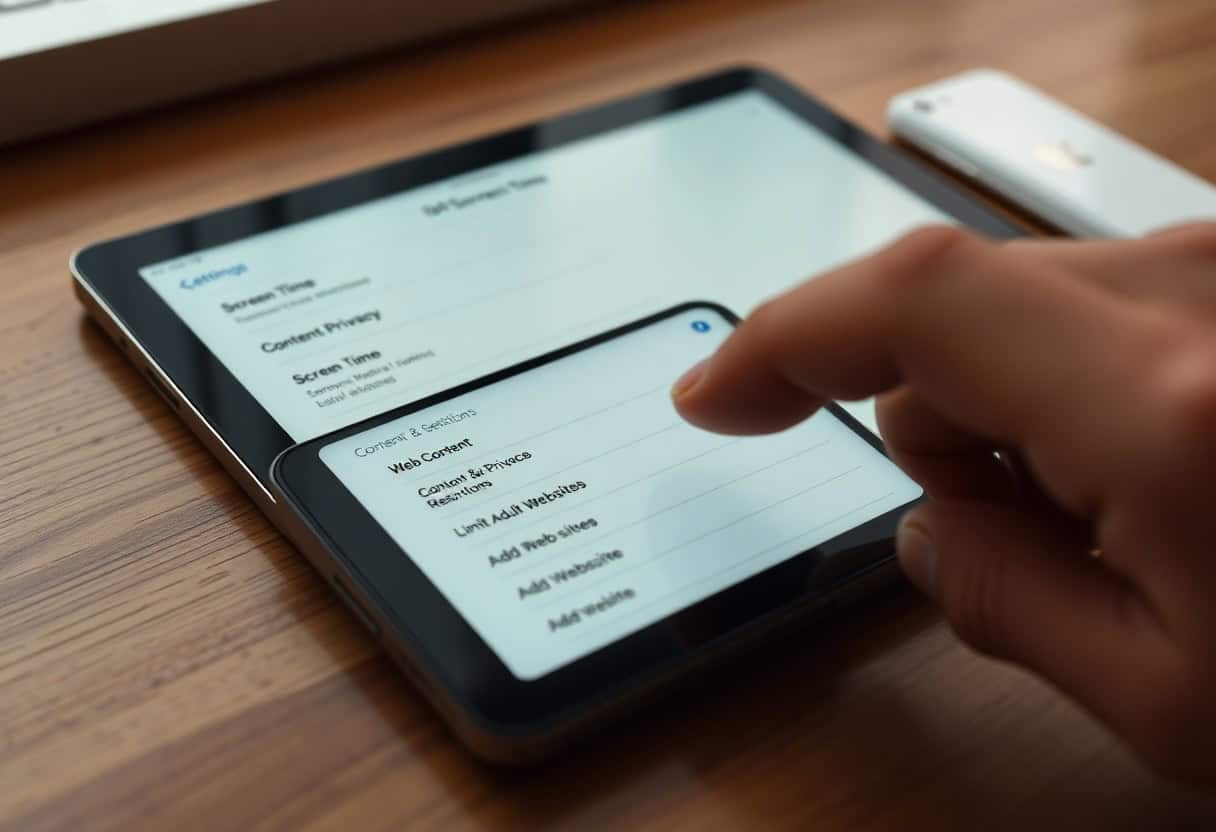
The quickest way to block websites on Safari is through Screen Time in iOS Settings — navigate to Content & Privacy Restrictions, tap Content Restrictions, then Web Content to block websites on Safari by category or specific URL. When you block websites on Safari using the Always Allow and Never Allow lists, the restriction applies instantly and cannot be bypassed from within the browser.
Parents who need to block websites on Safari for a child’s device should enable a Screen Time passcode to prevent the child from reversing the settings.
To block websites on Safari on Mac, open System Settings, select Screen Time, and use the Content & Privacy restrictions the same way you would on iPhone. If you need to block websites on Safari temporarily during a work session, a third-party app like Freedom or Cold Turkey can block websites on Safari on a schedule.
Supervised devices managed through Apple Business or School Manager let IT admins block websites on Safari silently using a configuration profile. The most consistent results come from combining Screen Time restrictions with a trusted DNS filtering service to block websites on Safari at the network level.
Knowing how to block websites on Safari is especially useful for families managing young children’s browsing habits. The Limit Adult Websites toggle under Screen Time will automatically block websites on Safari that contain mature content without requiring you to enter each URL manually.
For more precision, you can block websites on Safari by entering specific domains into the Never Allow list, which overrides the automatic filters. If a site slips through, you can always add it manually to block websites on Safari after the fact without changing any other settings.
Testing whether your restrictions work is a simple step people often skip after they block websites on Safari — open a restricted URL in Safari and confirm the blocked-content screen appears. If you find Safari is still loading restricted content, check that Screen Time Sync is not overriding local settings when you block websites on Safari across a Family Sharing group.
Periodically review the Never Allow list to remove outdated entries and add new ones as needed to keep your attempt to block websites on Safari effective over time.
Further reading: Apple Screen Time guide | Using content blockers in Safari
Understanding porn addiction is essential for recovery. Many people struggle with porn addiction silently, but recognizing the patterns of porn addiction is the first step toward change.
Understanding porn addiction is essential for recovery. Many people struggle with porn addiction silently, but recognizing the patterns of porn addiction is the first step toward change.
Understanding porn addiction is essential for recovery. Many people struggle with porn addiction silently, but recognizing the patterns of porn addiction is the first step toward change.
Understanding porn addiction is essential for recovery. Many people struggle with porn addiction silently, but recognizing the patterns of porn addiction is the first step toward change.
Understanding porn addiction is essential for recovery. Many people struggle with porn addiction silently, but recognizing the patterns of porn addiction is the first step toward change.
Understanding porn addiction is essential for recovery. Many people struggle with porn addiction silently, but recognizing the patterns of porn addiction is the first step toward change.
Understanding porn addiction is essential for recovery. Many people struggle with porn addiction silently, but recognizing the patterns of porn addiction is the first step toward change.
Understanding porn addiction is essential for recovery. Many people struggle with porn addiction silently, but recognizing the patterns of porn addiction is the first step toward change.
Understanding porn addiction is essential for recovery. Many people struggle with porn addiction silently, but recognizing the patterns of porn addiction is the first step toward change.
Understanding porn addiction is essential for recovery. Many people struggle with porn addiction silently, but recognizing the patterns of porn addiction is the first step toward change.
Understanding porn addiction is essential for recovery. Many people struggle with porn addiction silently, but recognizing the patterns of porn addiction is the first step toward change.
Understanding porn addiction is essential for recovery. Many people struggle with porn addiction silently, but recognizing the patterns of porn addiction is the first step toward change.
Understanding porn addiction is essential for recovery. Many people struggle with porn addiction silently, but recognizing the patterns of porn addiction is the first step toward change.
Understanding porn addiction is essential for recovery. Many people struggle with porn addiction silently, but recognizing the patterns of porn addiction is the first step toward change.