You can disable pop-up blocker settings in Chrome, Firefox, Edge, and Safari using straightforward steps. Knowing how to disable pop-up blocker behavior in each browser saves time when legitimate sites need pop-ups — this guide covers the exact steps and confirms changes.
Step-by-Step Guide for Google Chrome
Quick Steps
| Action | Where to find it |
| Open Chrome Settings | Menu (three dots) → Settings |
| Access Privacy controls | Settings → Privacy and security |
| Manage pop-ups | Privacy and security → Site settings → Pop-ups and redirects |
| Add site exceptions | Pop-ups and redirects → Add under “Allowed to send pop-ups and use redirects” |
| Mobile toggle | Chrome app → Menu → Settings → Site settings → Pop-ups and redirects |
Navigating Privacy and Security Settings on Desktop
Open Chrome and click the three-dot menu at the top-right, then choose Settings so you can access global controls; you will then select Privacy and security to reach Site settings where pop-ups are controlled. You will see a dedicated “Pop-ups and redirects” panel that shows the global switch and current exceptions list, which you can change instantly.
Chrome displays a toggle that blocks or allows pop-ups for all sites; you can flip this switch to permit pop-ups across the browser if a site requires them for functionality. You can test changes immediately by reloading the page that previously blocked a pop-up to confirm the new behavior.
From the same Site settings area you can clear specific site permissions or reset all permissions if you want to revert to the default behavior; this is useful when troubleshooting issues caused by overly permissive settings. You can return to these controls whenever you need to tighten or loosen restrictions.
Managing Exceptions for Specific Trusted Websites
On the Pop-ups and redirects page click Add next to the “Allowed to send pop-ups and use redirects” list and enter the exact site URL to create a trusted exception that bypasses the global block. You should include the protocol (https://) or use a domain-only entry when appropriate so Chrome applies the rule correctly.
Click the three-dot menu next to any listed site to edit or remove permissions when you need to revoke access, and remember that allowed exceptions override the global block for that specific origin. You can manage all exceptions from the same panel without altering other privacy settings.
Scroll to the lock icon at the left of the address bar while on a site to open Site settings and change Pop-ups and redirects specifically for that page if you prefer a per-visit approach; this is helpful when granting temporary permissions. You can switch between Allow and Block there and the change is recorded in your exceptions list.
Use wildcard-style entries sparingly and test subdomain behavior after adding an exception, since failing to include the correct domain format can either over-allow or fail to permit the needed pop-up; apply the least-permissive entry that still gives the site the access it needs.
Disabling the Blocker on Chrome Mobile Apps
Tap the three-dot menu in the Chrome mobile app, choose Settings, then Site settings to find Pop-ups and redirects where a single switch controls mobile pop-up blocking so you can allow them when required by a mobile site. You will see the toggle at the top of that panel for quick changes.
If you use Android you will generally get the same toggle as desktop, while iOS Chrome relies on WebKit and may not expose identical controls, so review the app’s Site settings carefully and test the target site after changing the setting. You should verify behavior on the real device rather than assuming parity with desktop.
Adjust the setting and reload the site to confirm whether the pop-up appears; some mobile pages open new tabs instead of traditional pop-ups, so watch for both behaviors when testing. You can always return to Site settings to flip the toggle back once you finish interacting with the trusted page.
Finish by clearing the site’s data or revoking the permission from Site settings if you only needed temporary access; this ensures you don’t leave broader allowances in place longer than necessary and keeps your mobile browsing permissions tidy.
How to Configure Mozilla Firefox Settings
Accessing the Permissions Panel via Preferences
Open Firefox, select the menu button (three horizontal lines) and pick Preferences (Options on Windows). You will land on the main settings page where privacy and security controls are grouped for easy access.
Click Privacy & Security in the left column, then scroll to the Permissions section where Pop-ups and Redirects is listed. You can inspect current settings and reach the Exceptions dialog from this area to manage site-specific behavior.
Adjust the Block pop-up windows toggle to allow or block by default, and use the Exceptions button to permit individual sites. You will see changes applied immediately when you next visit those pages.
Creating a Whitelist for Essential Pop-Up Windows
Choose Exceptions next to the Pop-ups setting to open the dialog where you manage site permissions. You can add trusted sites that require pop-ups for login flows, payment windows, or utility tools.
Enter the exact site address you trust into the Address of website field, then click Allow to add it to the list. You should add each service separately so you avoid over-permissioning.
Add entries conservatively and prefer full hostnames rather than broad patterns to limit exposure. You can remove any entry later if a site no longer needs pop-ups or behaves unexpectedly.
After populating the list, test each permitted site by reloading its page and triggering the pop-up action; Firefox will honor the exception and open windows as expected, and you can return to Exceptions at any time to edit or remove entries for tighter control.
Adjusting Safari for macOS and iOS
Modifying Preferences via the Websites Tab on Mac
On macOS, open Safari and choose Safari > Settings (or Preferences) from the menu bar, then click Websites to view site-specific permissions where Pop-up Windows appears in the left column; you can select any listed site to change its pop-up behavior. You will see a dropdown labeled When visiting other websites that controls the global default, and individual sites can be set to Allow, Block, or Prompt so you only enable pop-ups for trusted domains. You can add or remove entries by right-clicking a site or using the Remove button, which helps keep exceptions tidy while maintaining your chosen global policy.
In the Websites tab you can also review recently visited sites and quickly flip their setting without digging through menus, which is handy when a single site needs pop-ups temporarily enabled. You can test changes immediately by reloading the page in Safari; the new rule takes effect without restarting the browser so you can confirm whether a login window or payment form now appears. You should restrict Allow to sites you control or trust to reduce exposure to intrusive or malicious pop-ups while preserving functionality where required.
Clicking the dropdown next to a site entry reveals the allowed options and clicking Remove clears an exception if you no longer want that site to show pop-ups. You can combine these rules with content blockers and privacy settings in the same Preferences pane to fine-tune behavior for forms, authentication dialogs, and third-party widgets that rely on pop-up windows. You will find that careful management of per-site rules gives you both convenience and control without turning off protections across the board.
Toggling Pop-Up Settings in iPhone and iPad Menus
Open the Settings app on your iPhone or iPad and scroll to Safari, then toggle Block Pop-ups off to allow pop-ups systemwide for Safari; this switch controls the basic pop-up blocker across the device. You can combine that change with adjustments to Content Blockers in the same Safari settings page if you use an ad or privacy blocker that also interferes with legitimate pop-ups. You should limit such changes to trusted sites and re-enable blocking when you finish tasks that require pop-ups to reduce unnecessary exposure to unwanted windows.
Tap the aA icon in Safari’s address bar while on a webpage to access Website Settings, where you can disable content blockers for that site or request the desktop version, both of which can affect whether pop-ups appear. You can also manage permissions like use of camera, microphone, and location from the same menu, which matters because some sites present pop-ups only after granting other permissions. You will find that temporary per-site adjustments are safer than changing global settings when a single page needs an exception.
Within iPadOS the Settings app and Safari app share the same Block Pop-ups control, and third-party content blockers are listed under Settings > Safari > Content Blockers so you can toggle them without uninstalling extensions. You can test whether a blocker is the cause by disabling it briefly, then reloading the page to see if the pop-up appears; this quick trial helps isolate the source of blocked dialogs. You should be cautious about leaving blockers off longer than needed, since they protect against many intrusive behaviors.
If pop-ups still do not appear after toggling settings, clear website data via Settings > Safari > Clear History and Website Data, test in a private tab, or disable content blockers temporarily to rule out conflicts; restarting the device can also resolve cached state issues. You can check whether a specific app or profile enforces additional restrictions under Screen Time or managed device settings, which sometimes override Safari preferences and require changing those policies to allow pop-ups. You will often find that a brief combination of these steps restores expected behavior without permanently lowering your security posture.
Managing Pop-Ups in Microsoft Edge
Locating Site Permissions in the Browser Menu
Open the Edge menu (three dots) and choose Settings, then select Cookies and site permissions to access the panel that controls pop-ups and redirects; the Pop-ups and redirects entry is where you toggle global behavior and manage site exceptions. You can add specific domains to the Allow list to permit pop-ups and redirects only for trusted services, keeping the default block in place for everything else. This approach lets you maintain a locked-down posture while enabling the exact sites that need to display content or perform automated redirects.
Navigate to the All sites view or click the padlock icon on any loaded page to inspect that site’s permissions directly, which shows whether Pop-ups and redirects are allowed or blocked for the current domain. You can clear site-specific settings from this view or add the domain to the Allow list without changing global defaults, which helps when a single portal requires exceptions. Checking permissions per-site prevents broad changes that could expose you to unnecessary pop-ups from less trustworthy pages.
Select Permissions for this site from the address bar padlock when you need a quick override while on a page, then set Pop-ups and redirects to Allow for that domain only. You can also remove Allow entries if the site behavior changes or after a task is complete, restoring stricter handling automatically. Using these quick-access controls reduces the number of steps compared with digging through Settings every time you need a temporary exception.
How to Allow Redirects for Banking and Work Portals
Switch the Pop-ups and redirects setting to Allow for your bank or work portal by adding the exact domain under Settings > Cookies and site permissions > Pop-ups and redirects > Add, and include the full domain (for example, https://examplebank.com) to avoid opening access to unrelated subdomains. You should prefer precise domain entries rather than wildcards so only the intended service can perform the redirects it requires during authentication or transaction flows. This reduces the risk that other sites can exploit broader allowances.
Allowing redirects sometimes requires enabling related permissions, such as cookies for the same domain or letting third-party cookies temporarily if the portal uses an external authentication provider, which you can manage under Cookies and site permissions. You can test behavior by signing out and back in after making changes, and if the portal still blocks redirects verify that any browser extensions aren’t interfering. Adjustments to these linked settings help ensure the redirect completes without permanently weakening your overall protections.
Use the site-specific Allow list for banking and corporate portals and avoid turning off the global pop-up blocker; after adding the site, reload the page and follow the portal’s workflow to confirm redirects function as intended. You can remove the Allow entry when the task is finished or if the site no longer requires redirects, keeping your exception list minimal. Periodically review allowed sites to ensure only current, trusted services remain permitted.
If a redirect still fails after permitting the domain, check for cross-site redirects that may require you to also allow the authentication provider’s domain and verify that secure (https) addresses are being used; some portals use intermediary domains for single sign-on or document viewers, and those must be explicitly allowed too.
Key Factors Affecting Pop-Up Functionality
- Third-party security extensions and ad-blockers
- Browser cache and outdated software versions
- Network-level firewalls, proxies, and VPN settings
- Site permissions and built-in browser pop-up controls
Influence of Third-Party Security Extensions and Ad-Blockers
Security extensions often inspect and block the same scripts that trigger legitimate pop-ups, so you may see blocked dialogs or missing windows even when the browser itself allows them; you can test this by temporarily disabling the extension for a single site to confirm behavior and then apply a per-site exception if needed.
Extensions vary in aggressiveness and update cadence, and you should check extension settings for ad or script filters that target pop-up-related domains; you can whitelist trusted origins, adjust filter lists, or switch to a less aggressive profile to restore expected pop-up behavior while keeping protections.
Blocking can be caused by rule collisions between multiple extensions or by filter lists that mark functional pop-ups as unwanted, and you should audit installed add-ons, disable redundant blockers, and review extension changelogs to identify recent rule changes that began the interference.
Impact of Browser Cache and Outdated Software Versions
Cache can hold old scripts, stored permissions, or corrupted assets that affect how pop-ups are initiated, and you should clear cached files and cookies for a site when pop-ups behave inconsistently to force the browser to fetch fresh code and policies.
Clearing stored permissions resets any accidental denies you applied for pop-ups and helps you isolate whether the issue is local storage or a deeper compatibility problem; you should also test in a private window to bypass cached state quickly.
Updates to the browser and its rendering engine address security models and popup APIs, and you must keep both the browser and key extensions current so you do not encounter bugs or deprecated behaviors that prevent pop-ups from opening as intended.
Compatibility checks include verifying browser build, extension versions, and OS patches, and you should perform a simple workflow: update everything, clear site data, then retry the page to confirm whether the problem persists.
Role of Network-Level Firewalls and VPN Settings
Firewalls at the network edge can block requests to domains that serve popup scripts or strip headers needed for window creation, so you should check whether corporate or home firewalls include web-filtering rules that affect specific hosts used by the site.
Network policies and proxies may rewrite or block popup-related calls, and you can test by connecting to a different network or disabling a proxy to determine if the issue is local to your current connection rather than the browser configuration.
VPNs sometimes route traffic through providers that apply their own filtering or use DNS resolvers that block ad or tracking domains, and you should disconnect the VPN temporarily to see if pop-up behavior returns, or change VPN servers to compare results.
After testing without VPN or firewall interference, you should coordinate with your network administrator or VPN provider to allow the necessary endpoints or adjust filtering rules so that required pop-ups function while maintaining acceptable security controls.
Expert Tips for Secure Browsing
- Allow pop-ups only when a site functionally requires them, such as payment gateways or document viewers.
- Grant temporary permissions and revoke them after completing the task to limit exposure.
- Recognizing unexpected pop-ups from unfamiliar domains or that demand immediate action as likely malicious and block them immediately.
Differentiating Between Functional and Malicious Windows
You can judge a popup by context: if it appears after a specific action on a trusted site and matches that domain, it is more likely functional, whereas unsolicited windows are suspicious. Inspect URLs and certificate indicators, and treat requests for downloads or credential fields with extra caution. When in doubt, avoid interacting and reopen the feature in a new tab on the main site.
Assess visible branding and workflow consistency; legitimate pop-ups often mirror the site’s UI and expected steps, while malicious ones use alarmist language or strange file types. Hover links to reveal destinations and confirm redirects before clicking anything. Opt to close suspicious windows immediately and report the source if it persists.
Check browser warnings and extension alerts that may flag injected content or blocked scripts, and use those signals to guide your next step. Compare the popup’s behavior to prior legitimate interactions on the same site and watch for repeated attempts after blocking. If you must allow a popup, grant minimal permissions and monitor for unexpected downloads or settings changes.
Using Private Browsing for Temporary Access
Enable private mode when you need to allow pop-ups temporarily without altering your main profile or saving persistent cookies and site permissions. Use the session to complete single tasks like viewing receipts or one-off document viewers, then close the window to discard session data. Keep in mind private browsing does not conceal activity from your network provider, so use it for isolation, not anonymity.
Close the private window as soon as the task is complete to ensure temporary tokens and permissions are removed from your environment. Avoid installing extensions or entering long-term credentials while in private mode to minimize lingering risk. If a popup in private mode requests elevated privileges, block it and verify the site in a controlled context first.
Use temporary site permissions when supported so you can allow pop-ups only for the duration of the private session and revoke them afterward, reducing persistent exposure. Combine this with clearing site data after the session to further limit residual artifacts. Treat unexpected pop-ups in private windows with the same suspicion you apply to normal browsing.
Consider setting up a dedicated temporary profile if you need stronger isolation than private mode offers, which lets you test access without affecting your main settings and extensions.
Recommended Security Practices for Unrestricted Browsing
Limit pop-up permissions to a narrow whitelist of trusted sites and remove entries you no longer use to shrink your attack surface while preserving necessary functionality. Review those exceptions periodically and prefer site-by-site allowances over a global enable. Rely on browser-managed permissions rather than manual overrides when possible.
Update your browser and extensions promptly so you receive fixes for popup-related exploits and injection vulnerabilities, and enable automatic updates where feasible. Audit installed extensions for those you no longer need and remove any that are poorly maintained or request excessive privileges. Keep an eye on changelogs when updates affect content blocking.
Scan any files that originate from pop-ups with reputable antivirus software before opening them, and consider using sandboxed environments for testing untrusted downloads. Use strong, unique passwords and two-factor authentication to reduce the impact of credential theft from deceptive pop-ups. Record and report suspicious sites to help protect others.
Maintain a routine of reviewing site permissions and revoking temporary access after tasks, and combine that with periodic extension audits and enabled security prompts for downloads and protocol handlers to limit silent changes to your system.
Summing up
The quickest approach across Chrome, Firefox, Edge, and Safari is to open Settings, access Site or Content settings, and change the Pop-ups permission for the specific site; you can toggle the blocker off or add an exception when a legitimate page needs pop-ups.
You can also check the address bar lock icon to allow pop-ups per site and review browser extensions that block unwanted windows; disabling an ad-blocker temporarily often resolves persistent blocks for trusted services.
You should test the site after changes, keep pop-up allowances limited to trusted domains, and restore stricter settings when you finish to maintain browsing security.
FAQ
Q: How do I disable the pop-up blocker in Google Chrome on desktop?
A: To disable the pop-up blocker in Chrome on Windows or macOS, open Chrome, click the three-dot menu in the top-right corner, choose Settings, select Privacy and security, click Site Settings, then Pop-ups and redirects. Turn off the “Blocked (recommended)” toggle to allow pop-ups globally or click Add under “Allowed to send pop-ups and use redirects” to permit specific sites. If pop-ups remain blocked, check installed extensions that block pop-ups and disable or whitelist the site in those extensions.
Q: How do I turn off pop-up blocking in Mozilla Firefox (desktop)?
A: Open Firefox, click the three-line menu, choose Options (Windows) or Preferences (macOS), then select Privacy & Security and scroll to Permissions. Uncheck “Block pop-up windows” to disable the blocker globally. To allow only particular websites, click Exceptions, enter the site address, and click Allow. Verify any content-blocking add-ons if pop-ups still do not appear and adjust those add-on settings for the site.
Q: How can I disable pop-up blocking in Safari on macOS?
A: In Safari on macOS, open Safari > Preferences, go to the Websites tab, select Pop-up Windows in the sidebar, and set the desired behavior for the current website or choose Allow from the dropdown at the bottom to permit pop-ups for all sites. For a site-specific change while browsing, click Safari’s address bar, select Settings for This Website, and set Pop-up Windows to Allow. Disable any Safari extensions that may block pop-ups via Safari > Preferences > Extensions if issues persist.
Q: What are the steps to disable pop-up blocking in Microsoft Edge?
A: Open Edge, click the three-dot menu, choose Settings, go to Cookies and site permissions, then select Pop-ups and redirects. Turn off the Block toggle to allow pop-ups or add individual sites to the Allow list. Use edge://settings/content/popups to open the setting directly and check any ad-blocking extensions if pop-ups are still blocked.
Q: How do I disable pop-up blocking on mobile browsers (Android and iOS)?
A: On Android Chrome, open Chrome, tap the three-dot menu, go to Settings > Site settings > Pop-ups and redirects, and toggle Off to allow pop-ups or add exceptions. On iOS Safari, open the iPhone or iPad Settings app, scroll to Safari, and toggle off Block Pop-ups to permit pop-ups. For other mobile browsers, open the app settings or the device settings to find site or content controls and review any content-blocking extensions or profiles that might block pop-ups.
Related guides: Block a Specific URL in Chrome | What is a Content Blocker? | Block Websites on Your Phone
Key Takeaways: How to Disable Pop-Up Blocker
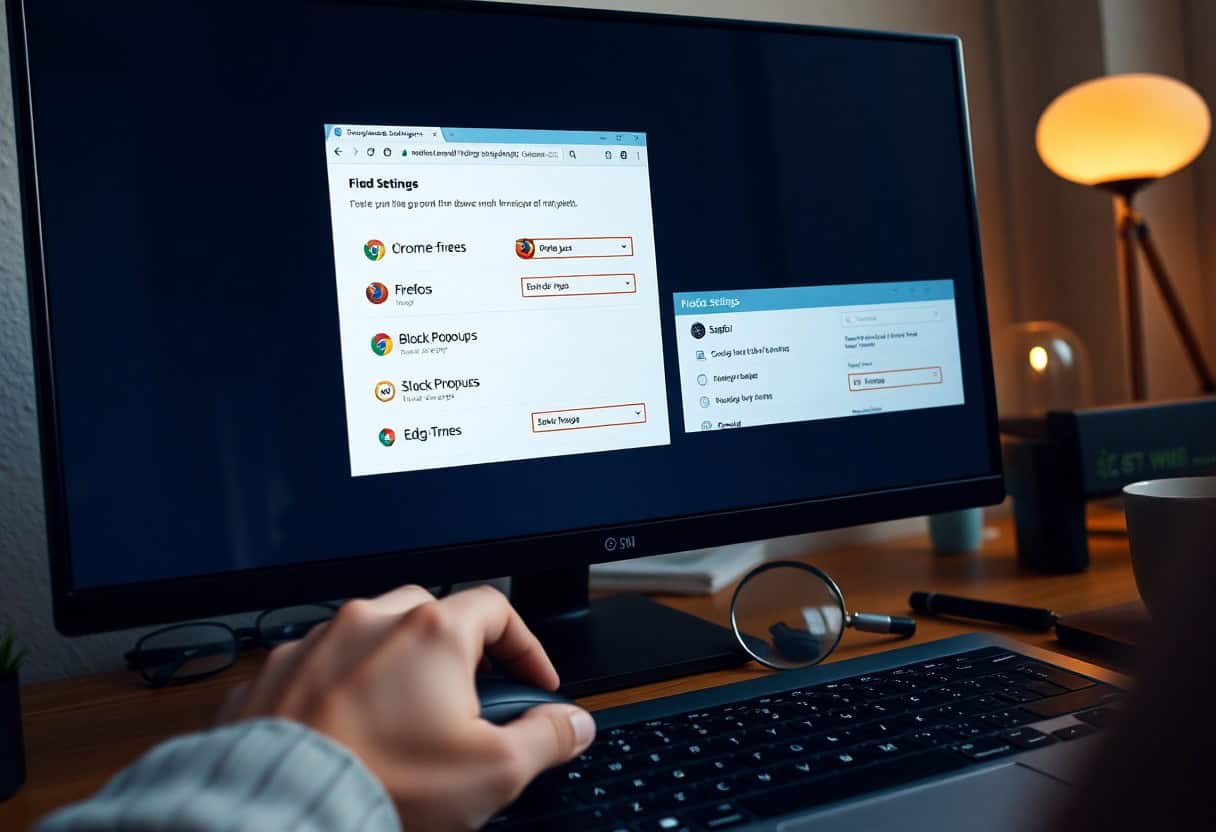
The most common reason to disable pop-up blocker settings is to allow a trusted website — such as an online banking portal or a ticketing platform — to open a small window the browser would otherwise suppress. You can disable pop-up blocker in Chrome by opening Settings, selecting Privacy and Security, then Site Settings, and toggling Pop-ups and redirects. If you only need to disable pop-up blocker for a single site, Chrome lets you add that site to the Allow list without turning off global protection.
To disable pop-up blocker in Firefox, open Preferences, navigate to Privacy & Security, and uncheck Block pop-up windows — or use Exceptions to disable pop-up blocker for individual domains. Edge users can disable pop-up blocker through Settings, Cookies and Site Permissions, then Pop-ups and redirects, where the same site-level Exceptions list is available. Safari users who need to disable pop-up blocker should open Safari Preferences, go to Websites, select Pop-up Windows, and change the setting to Allow for the relevant domain.
When you disable pop-up blocker for a specific site, re-enable it immediately after completing your task — leaving pop-up blocker disabled indefinitely exposes you to ad-driven pop-ups on every site you visit. IT administrators often disable pop-up blocker on managed devices for internal tools like help desk portals that require pop-up windows to function. If a site claims you must disable pop-up blocker to proceed but is not a trusted source, treat the request as a potential phishing attempt rather than a legitimate requirement.
Testing whether you successfully disable pop-up blocker is straightforward: open the site and trigger the action that spawns the pop-up, then confirm the window appears. If the pop-up still does not load after you disable pop-up blocker, check for third-party extensions like ad blockers that apply their own pop-up restrictions independently of the browser’s native setting. Keep a note of which sites require you to disable pop-up blocker so you can re-apply protection once you have finished using them.
Knowing when to disable pop-up blocker and when to keep it active is a skill worth developing: disable pop-up blocker only for sites you trust completely, confirm the pop-up loads, then re-enable protection. Browsers remember sites where you chose to disable pop-up blocker, so you will not need to repeat the process each visit unless you clear site data. The one scenario where you should never disable pop-up blocker is on an unfamiliar site that pressures you to do so before showing you content — that pattern is a reliable sign of malicious intent.
Most users only need to disable pop-up blocker once per trusted site — after that the browser remembers the exception automatically. A quick way to confirm your browser remembered to disable pop-up blocker for a given domain is to revisit Settings and check the Allow list. If the site no longer needs a pop-up, simply remove it from the Allow list rather than leaving your choice to disable pop-up blocker in place indefinitely.
Further reading: Google Chrome pop-up settings | Firefox pop-up blocker guide
Compare the tools: see our full guide to the best porn blockers of 2026 — apps, extensions and software compared.