Websites consume 62.54% of global website traffic from mobile devices. You spend an average of 5 hours and 16 minutes per day on your phone, a 14% increase from 2024. This guide will show you how to block websites on your phone, helping you manage screen time and avoid distracting or harmful content. You can regain control over your digital habits.
How to Block Websites on Phone: iPhone
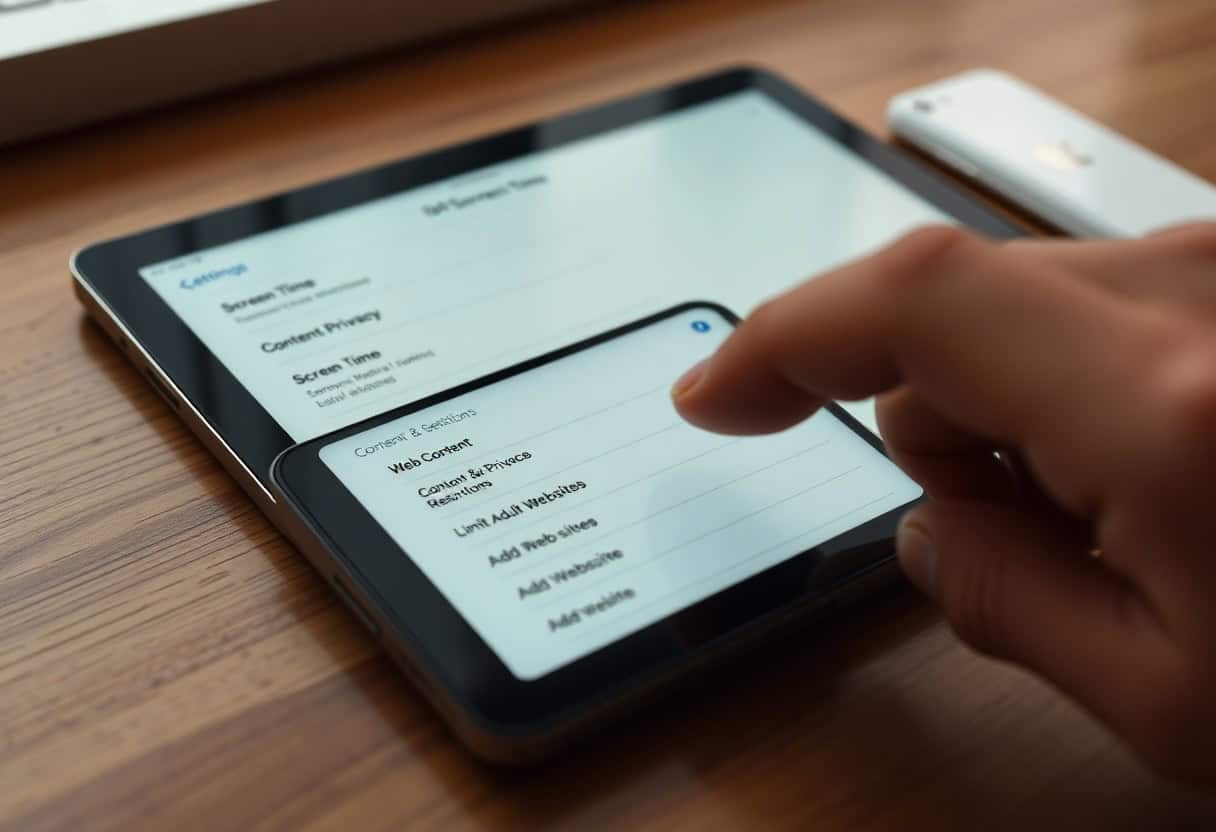
You can use Screen Time, a Digital Well-being feature, to block websites on your iPhone. Open Settings, then tap “Screen Time.” Select “Content & Privacy Restrictions,” then toggle it on. Tap “Content Restrictions,” then “Web Content.” You can choose “Limit Adult Websites” or “Allowed Websites Only.” For specific sites, select “Limit Adult Websites,” then “Add Website” under “NEVER ALLOW” to enter the URL.
How to Block Websites on Phone: Android
Android devices offer various methods to block websites. You can utilize Digital Well-being features or third-party apps. For many Android phones, go to Settings, then “Digital Wellbeing & parental controls.” You can set app timers or use “Focus mode” to pause distracting apps. For website blocking, third-party apps like “BlockSite” or “StayFree” are effective. Download one from the Google Play Store, then follow the in-app instructions to add websites to a block list.
The Landscape of Digital Well-being and Parental Control
The Rise of Screen Time and Mobile Dominance
You recognize the pervasive presence of screens in daily life, especially for younger generations. Children aged 8-12 now spend an average of 4-6 hours a day glued to screens, while their teenage counterparts can spend up to a staggering 9 hours. This escalation in screen time underscores the immediate need to understand how to block websites on your phone effectively, mitigating exposure to potentially harmful or distracting content.
This increased usage directly correlates with the growing reliance on mobile devices for everything from education to entertainment. The sheer accessibility of smartphones means content is always at your fingertips, making conscious digital management more challenging than ever. You need strategies to manage this influx of digital information.
Consider the implications of these trends on your family’s digital habits. As devices become more central, establishing clear boundaries and utilizing tools to control access becomes a fundamental aspect of modern parenting and personal digital hygiene. Understanding these trends helps you make informed decisions.
Defining Key Terminology: Whitelists vs. Blacklists
You often encounter terms like “whitelisting” and “blacklisting” when discussing content filtering. A blacklist functions by blocking access to a specific list of undesirable websites or applications. Think of it as a “no-entry” list for known problematic digital spaces, allowing everything else to pass through.
Conversely, a whitelist operates on a principle of exclusion, permitting access *only* to a pre-approved list of websites or apps. This method offers a more restrictive and, often, safer environment, especially for younger users. It’s like having an “approved visitors only” sign for the internet.
Implementing either a whitelist or a blacklist depends entirely on your specific needs and the level of control you wish to exert. For instance, if you want to block websites on phone for a younger child, a whitelist might be more appropriate, ensuring they only visit educational or pre-screened sites.
You should consider the age and digital maturity of the user when deciding between these two approaches. A blacklist might suffice for an older teen, allowing them more freedom while still preventing access to truly harmful sites. For younger children, a whitelist provides a more controlled and secure digital environment, offering peace of mind regarding their online activities.
The Shift Toward Personal Responsibility Among Younger Users
You might be surprised to learn about the evolving attitudes of younger users towards their device usage. A 2025 survey revealed a significant increase in 12-15 year olds taking breaks from devices, rising from 18% in 2022 to 40%. This shift is driven by their own concerns about mental health, personal safety, and concentration.
This growing awareness among adolescents indicates a proactive approach to digital well-being that you can encourage. While parental controls remain necessary, this self-initiated move towards healthier habits is a positive development. You can support this by providing the tools and knowledge for them to manage their own screen time.
The data from a 2023 survey showed 93.7% of parents using some form of parental control for school-aged children, with 75.1% of parents total reporting they control usage. However, a 2025 study found parental controls are underutilized, with only 47% of parents using them on smartphones. This highlights a disconnect between reported usage and actual implementation, suggesting more education is needed on how to effectively block websites on phone and other devices.
You have an opportunity to foster greater digital literacy and self-regulation in your children. By understanding their concerns and providing them with the means to manage their own device usage, you can empower them to make responsible choices. This includes teaching them how to utilize built-in device features to limit distractions or block specific content, aligning with their growing desire for personal digital well-being.
Implementing Restrictions on Android Devices
Android users have several robust options for implementing restrictions and effectively blocking websites on their phone. You can utilize Google Family Link, an official parental control solution, to link accounts to a child’s device, set content restrictions, and manage app usage. This comprehensive tool offers a centralized way to oversee digital activity and ensure a safer online environment for younger users.
Many people believe Google Chrome’s SafeSearch directly blocks specific websites; however, this is a common misconception. SafeSearch primarily filters explicit content from search results, not specific URLs. Understanding this distinction is key to choosing the correct method for your blocking needs.
Another common misunderstanding is that mobile Chrome offers native URL blocking. Unfortunately, it does not. To block specific sites directly within Chrome on an Android device, you will need to rely on extensions or third-party applications. This section will guide you through the most effective strategies to block websites on your phone using Android-specific tools.
Setting Up Google Family Link for Comprehensive Management
Parents can easily link their child’s device to their own account using Google Family Link. This official parental control solution provides a powerful suite of features designed to manage a child’s digital experience. You gain the ability to monitor app usage, set screen time limits, and approve or block app downloads directly from your own device.
You have the power to set specific content restrictions, ensuring your child only accesses age-appropriate material. This feature is particularly useful for filtering out unsuitable websites and apps, creating a safer browsing environment. Google Family Link allows for granular control over various categories of content.
Managing app usage becomes straightforward with Family Link, as you can see how much time your child spends on different applications. This insight empowers you to encourage healthier digital habits and prevent excessive screen time. The dashboard offers a clear overview of their device activity.
Using SafeSearch to Filter Search Results
You can enable Google Chrome’s SafeSearch to filter explicit content from search results. This setting helps prevent potentially inappropriate images, videos, and websites from appearing when you or your child conduct searches. It acts as a first line of defense against unwanted material.
Keep in mind, SafeSearch specifically targets explicit content within search results, not individual website blocking. This means while it will clean up what appears in a Google search, it won’t stop someone from directly typing in a specific website URL. It’s a valuable tool for general content filtering.
The primary function of SafeSearch is to provide a cleaner search experience. It works across various devices where you are logged into your Google account, ensuring consistent filtering. Activating this feature is a simple step towards a more controlled browsing environment.
While SafeSearch is excellent for filtering search results, it’s important to reiterate that it does not block specific websites directly. If you need to prevent access to particular URLs, you’ll need to explore other methods described in this guide.
Overcoming Native Browser Limitations in Chrome
Mobile Chrome, unlike its desktop counterpart, does not offer native URL blocking capabilities. This means you cannot simply go into the browser settings and add a website to a blocked list. You will need to look for alternative solutions to achieve this specific outcome.
You must rely on extensions or third-party apps if you want to block specific sites directly within the Chrome browser on your Android device. These external tools provide the functionality that is missing from the native mobile Chrome experience. Many options are available, each with varying features.
Finding the right extension or app is key to effectively block websites on phone. Researching reputable options that integrate well with Android and Chrome will be imperative. Always check reviews and permissions before installing any new software on your device.
Since mobile Chrome lacks built-in site blocking, exploring third-party solutions is the most direct route to restrict access to specific websites. These apps often provide more comprehensive control over browsing, including custom block lists and scheduling features.
Advanced Blocking: DNS and Router-Level Methods to Block Websites on Phone
Beyond individual app settings, you can establish more comprehensive website blocks using network-level methods. DNS Filtering, also known as Domain Name System Filtering, offers a powerful way to block websites by routing your device’s internet traffic through a specialized DNS server. This server actively filters out unwanted domains, ensuring that the block applies across all apps and browsers on your device.
Configuring a Private DNS provider provides device-wide filtering without requiring root access, making it an accessible option for many users. Alternatively, router-level blocking allows you to configure your home Wi-Fi administrative interface to block specific sites for every device connected to your network. While seemingly robust, it’s important to understand the limitations of each method.
Configuring Private DNS for Device-Wide Filtering
You can achieve device-wide filtering by configuring a Private DNS provider on your phone. This method works by directing all your internet requests through a DNS server that has been set up to filter unwanted domains. The beauty of this approach lies in its ability to block websites across all applications and web browsers, providing a consistent layer of protection.
Using a Private DNS provider like AdGuard DNS, OpenDNS, or CleanBrowsing offers a significant advantage: it enables device-wide filtering without requiring you to root your phone. This means you can implement these powerful blocks without compromising your device’s security or voiding its warranty. The process is typically straightforward, involving a few adjustments in your phone’s network settings.
Your choice of Private DNS provider will depend on your specific needs and preferences, as each offers different levels of filtering and customization. Regardless of which service you select, the core benefit remains the same: a comprehensive, device-wide block that helps you manage distracting or harmful content effectively.
-
For Android Users:
1. Open your device’s “Settings” app. 2. Tap on “Network & internet” or “Connections.” 3. Select “Private DNS.” 4. Choose “Private DNS provider hostname.” 5. Enter the hostname for your chosen provider (e.g., `dns.adguard.com` for AdGuard DNS). 6. Tap “Save.” -
For iPhone Users:
1. Go to “Settings” > “Wi-Fi.” 2. Tap the “i” icon next to your connected Wi-Fi network. 3. Scroll down and tap “Configure DNS.” 4. Change from “Automatic” to “Manual.” 5. Tap “Add Server” and enter the IP address of your chosen DNS provider (e.g., 176.103.130.130 for AdGuard DNS). 6. Delete any existing DNS servers. 7. Tap “Save.” (Note: This method is network-specific; for device-wide, consider a VPN app that offers DNS filtering.)
Implementing Router-Level Restrictions for Home Networks
You can implement router-level blocking to extend website restrictions across all devices connected to your home Wi-Fi network. This method involves accessing your home Wi-Fi administrative interface, which is typically found by navigating to an IP address like 192.168.1.1 in a web browser. Once logged in, you can configure settings to block specific websites.
Accessing your router’s settings allows you to create a centralized filtering system for your entire household. This means that any device, whether it’s a smartphone, tablet, or computer, that connects to your home Wi-Fi will be subject to the same website blocks. This can be particularly useful for families looking to manage internet access for children.
The exact steps for configuring router-level blocks will vary depending on your router’s brand and model. You will typically find options for “Parental Controls,” “Website Filtering,” or “Access Restrictions” within the administrative interface. Entering the domain names of the websites you wish to block will then apply these restrictions network-wide.
This approach is beneficial for enforcing consistent internet usage policies for all devices connected to your home network.
Understanding the Vulnerabilities of Network-Level Blocks
A common misconception regarding router blocks is that they are foolproof and provide an impenetrable barrier against unwanted content. Unfortunately, this is not entirely accurate; users can bypass these restrictions by simply switching from your home Wi-Fi to their mobile data connection. Your router’s settings only apply to traffic flowing through it.
Your phone, when using mobile data, operates independently of your home Wi-Fi network and its associated filtering rules. This means that any website blocks you’ve meticulously set up on your router will become ineffective the moment a user switches to their cellular network. This vulnerability highlights the need for a multi-layered approach to content filtering.
Considering this bypass method is vital when planning your blocking strategy, especially if you aim for comprehensive content control. Relying solely on router-level blocks may lead to unintended access to restricted content when devices are off your home Wi-Fi. It’s important to combine methods for a more robust solution.
This means that while router-level blocks are effective for devices connected to your home Wi-Fi, they do not offer a complete solution for mobile devices that can easily switch to cellular data.
How to Block Websites on Your Phone: Third-Party Applications and Browser Extensions
Utilizing Dedicated Blocking Apps for Productivity
You can effectively block websites on your phone by employing dedicated third-party applications. Apps like BlockSite, Freedom, Stay Focused, and FocusMe provide a comprehensive suite of features to help you manage your digital consumption. These tools move beyond simple blocking, offering scheduled blocking intervals.
Specific features within these applications often include the ability to create custom blocklists, allowing you to tailor which sites are inaccessible. Imagine setting up a blocklist for social media during work hours or news sites when you need to focus on a creative project. These custom lists give you precise control.
Many of these powerful applications also offer cross-device syncing, a truly beneficial feature. This means that once you configure your blocking preferences on one device, those same restrictions can apply across your other devices, ensuring a consistent and distraction-free environment wherever you are.
Installing Browser Extensions for Granular Control
You can gain granular control over website access by installing browser extensions directly onto your mobile browser. Mobile browsers like Firefox and Samsung Internet Browser offer support for various extensions, bringing desktop-level blocking capabilities to your phone.
Consider using extensions such as LeechBlock NG, which is specifically designed for website blocking. This particular extension allows you to define specific times or durations for blocking certain websites, helping you maintain focus during critical periods. The control offered by these extensions is quite precise.
The beauty of browser extensions lies in their integration directly into your browsing experience. This means that as you navigate the internet on your phone, the extension actively monitors and enforces your blocking rules, preventing you from even accidentally stumbling upon distracting content.
These browser extensions are excellent for those who primarily use their mobile browser for work or study and need to avoid specific sites during those times. They are typically easy to install and configure, providing a quick solution for targeted website blocking without needing to install a separate, system-wide application.
Addressing Common Bypass Methods and Maintenance
You should be aware that users, and perhaps even you, might attempt to bypass website blocks on your phone. Common methods include clearing browser cache and cookies, which can sometimes remove the temporary data that enforces certain restrictions. Understanding these methods helps you reinforce your blocks.
Another common bypass technique involves restarting the device. While this might resolve minor glitches, it can also, in some cases, reset temporary settings or processes that are enforcing blocks. Regular maintenance of your blocking apps and extensions can help mitigate this.
Users might also try using different browsers that do not have restrictions enforced. If you have installed an extension on Firefox, but then switch to Chrome, the blocks will not carry over. To maintain consistent blocking, you need to ensure restrictions are applied across all browsers you use or restrict access to unblocked browsers.
To effectively address these bypass methods, you should periodically check the settings of your blocking applications and extensions. This includes verifying that your custom blocklists are still active and that no unintended changes have occurred. Regularly updating your apps also helps ensure they remain effective against evolving bypass techniques.
Enterprise Solutions and Professional Management
Deploying Mobile Device Management (MDM) for Organizations
Organizations looking to block websites on phone devices across their workforce will find Mobile Device Management (MDM) solutions indispensable. These platforms provide a centralized approach to managing company-issued Android devices, allowing administrators to implement website blocking policies efficiently.
Implementing MDM begins with selecting a solution that aligns with your organization’s specific needs and security requirements. Once chosen, you can enroll your company’s Android devices into the MDM system, granting you the ability to remotely configure settings and restrictions.
Administrators then define website blacklists or whitelists, applying these policies to individual devices or entire departments. This ensures a consistent and controlled digital environment, directly contributing to enhanced operational efficiency and security.
Enhancing Employee Focus and Cybersecurity
Businesses are increasingly implementing website blocking solutions on company-issued Android devices to boost employee productivity. By restricting access to non-work-related sites, employees can maintain focus on their tasks, leading to improved output and project completion rates.
Protecting against cyber threats represents another critical benefit of these solutions. Unrestricted web access can expose company devices to malware, phishing attempts, and other security vulnerabilities, compromising sensitive data and network integrity.
MDM solutions specifically offer centralized website blocking capabilities across entire fleets of devices, creating a robust defense against potential online dangers. This proactive approach significantly reduces the risk of security breaches and data loss.
Blocking access to malicious or inappropriate websites directly reduces the attack surface for cybercriminals. This proactive measure strengthens your organization’s overall cybersecurity posture, protecting both company assets and employee data.
The Role of MDM in the Modern Digital Ecosystem
The complexity of the digital ecosystem necessitates the development of professional control mechanisms to guide technology use. MDM solutions serve as a foundational tool in this regard, offering organizations the ability to manage and secure their mobile device fleet effectively.
Guiding technology use within a business context extends beyond simply blocking websites; it encompasses managing applications, enforcing security policies, and ensuring compliance with industry regulations. MDM provides a comprehensive framework for these critical functions.
These professional control mechanisms, like those offered by MDM, are imperative for maintaining a secure and productive work environment in an era of constant digital evolution. They empower businesses to adapt to new challenges while safeguarding their digital assets.
MDM solutions are not just about restrictions; they enable organizations to create a tailored digital environment that supports business objectives while mitigating risks. This holistic approach to device management is indispensable in today’s interconnected world.
Final Words
Presently, you possess the knowledge to effectively block websites on your phone, a powerful step towards digital well-being. This guide has equipped you with methods to curb distractions and safeguard yourself from harmful content, whether you use an Android or an iPhone device. Taking control of your digital environment allows you to reclaim valuable time and focus on what truly matters. You are now prepared to implement these strategies and experience a more intentional online experience.
For Android users, you can block websites through the Google Family Link app or by adjusting your device’s DNS settings. To use Google Family Link, first install the app and create an account. Link your child’s device, then open the app, select their profile, and tap ‘Content restrictions’ followed by ‘Google Chrome’. You can then select ‘Manage sites’ and manually add websites to block. Alternatively, you can change your DNS. Go to Settings, tap ‘Network & internet’ then ‘Private DNS’. Select ‘Private DNS provider hostname’ and enter a DNS filter like ‘dns.adguard.com’ to block a wide range of unwanted content.
iPhone users have similar options through Screen Time and content restrictions. To set up Screen Time, go to Settings, tap ‘Screen Time’, and then ‘Content & Privacy Restrictions’. Turn this feature on, then select ‘Content Restrictions’ and ‘Web Content’. You can choose to ‘Limit Adult Websites’ or ‘Allowed Websites Only’, adding specific websites you wish to block or allow. While parental control adoption remains low, as Stephen Balkam, CEO of FOSI, notes, open communication is a powerful tool. Combining these technological blocks with active guidance, especially for younger users, creates a comprehensive approach to managing screen time.
FAQ
Q: Why should I consider blocking websites on my phone?
A: Blocking websites on your phone helps manage digital distractions and protect against harmful content. Many individuals, especially younger people, proactively take breaks from digital devices to manage their mental health and focus. A 2025 survey indicated Americans spend an average of 5 hours and 16 minutes per day on their phones, a 14% increase from 2024. Restricting access to certain sites can significantly reduce this time and improve concentration.
Q: How can I block websites on my iPhone using built-in features?
A: iPhone users can block websites using the built-in “Screen Time” feature. Here’s a step-by-step guide:
- Open your iPhone’s Settings app.
- Tap on Screen Time.
- Select Content & Privacy Restrictions.
- If prompted, enter your Screen Time passcode.
- Tap on Content Restrictions.
- Choose Web Content.
- You have two main options here:
- Limit Adult Websites: This option automatically blocks many adult websites. You can also add specific websites to a “Never Allow” list.
- Allowed Websites Only: This is a more restrictive option, blocking all websites except those you explicitly add to an “Always Allow” list. This is often used for younger children.
- To add specific websites to either the “Never Allow” or “Always Allow” list, tap “Add Website” and enter the URL.
Q: What are the best ways to block websites on phone for Android users?
A: Android users have several effective methods to block websites on their phone. Google Chrome does not offer native, built-in website blocking for specific URLs directly. You can use these options instead:
- Google Family Link: This parental control solution allows you to link your account to a child’s device. Parents can set content restrictions (allow all, block mature, or only allow approved sites) and manage app usage.
- Private DNS: Configuring a custom DNS provider like AdGuard DNS, OpenDNS, or CleanBrowsing can filter website categories across all apps and browsers on your device. This works at the network level.
- Third-party apps: Apps such as BlockSite, Freedom, Stay Focused, and FocusMe provide robust website and app blocking features. These often include scheduled blocking, custom blocklists, and cross-device syncing.
- Browser extensions: Some mobile browsers, like Firefox and Samsung Internet Browser, support extensions (e.g., LeechBlock NG) for website blocking.
Q: Can I block websites on my phone for all devices connected to my home Wi-Fi?
A: Yes, you can block websites at the router level, which affects all devices connected to your home Wi-Fi network. This method requires configuring your router’s administrative interface, often accessible through an IP address like 192.168.1.1 in a web browser. Keep in mind, users can bypass these restrictions by switching to mobile data when away from the home Wi-Fi network.
Q: What is DNS Filtering and how does it help block websites on phone?
A: DNS Filtering is a method of blocking websites by routing internet traffic through a specialized DNS server. This server filters out unwanted or malicious domains. When you try to access a website, your device asks the DNS server for the website’s IP address. If the DNS server is configured for filtering, it will prevent access to blocked sites by not providing the IP address or redirecting you. This works at the network level, affecting all apps and browsers on a device, offering a comprehensive way to block websites on phone without requiring additional software installations or root access.
Related guides: Block Websites on Safari iPhone | Block a Specific URL in Chrome | What is a Content Blocker?
Key Takeaways: How to Block Websites on Your Phone
The most reliable way to block websites on your phone is to use your device’s built-in parental controls — Screen Time on iPhone and Digital Wellbeing on Android both let you block websites on your phone at the OS level. When you block websites on your phone using these tools, every browser on the device is affected, not just one. If you need to block websites on your phone for a child’s device, setting a Screen Time passcode ensures the restrictions cannot be bypassed.
Third-party apps let you block websites on your phone with more granularity than native settings allow. Apps like Freedom and BlockSite let you schedule when to block websites on your phone, so distracting sites are automatically restricted during work or study hours. If your goal is to block websites on your phone to reduce porn use, an app with accountability reporting adds an extra layer of motivation. The best approach to block websites on your phone combines both OS-level controls and a third-party app.
Parents who want to block websites on your phone remotely should look at Google Family Link, which lets you block websites on your phone from a parent device without touching the child’s handset. Family Link categories let you block websites on your phone by content type rather than entering individual URLs. To block websites on your phone that fall outside preset categories, you can add custom URL blocks through the Family Link dashboard. Consistency matters — revisit the settings monthly to block websites on your phone that children have discovered since the last review.
Router-level DNS filtering is a powerful supplement when you need to block websites on your phone across your home network. Services like CleanBrowsing and NextDNS block websites on your phone and every other device on the network simultaneously. While DNS filtering alone will not block websites on your phone on mobile data, combining it with a screen time app covers both Wi-Fi and cellular. Understanding all the available layers helps you choose the right combination to block websites on your phone effectively in your specific situation.
Further reading: Google Family Link parental controls | Apple Screen Time guide
Compare the tools: see our full guide to the best porn blockers of 2026 — apps, extensions and software compared.